SynergyCP Server Manifest Check Package#
About#
The Server Manifest Check package verifies that a server’s physical hardware matches the parts listed for it in SynergyCP. The server is booted into the SynergyCP PXE shell, which inventories the CPU, memory, disks, storage controllers and drive health, and posts the result back to SynergyCP. A background job then asks an AI model (Anthropic’s Claude) to compare the inventory with the server’s listed parts and reports a verdict: match, mismatch or inconclusive, plus any drive health findings.
Use it to catch mislabelled inventory before a customer does: a CPU that was swapped during a repair, a drive that is the wrong tier, a RAID card that is listed but missing, or a disk with growing sector errors on an otherwise correctly built server. Set it as the profile SynergyCP runs when a server is wiped, and every server returning from a cancelled customer is verified before it goes back on sale.
Results appear on the server’s page and on a fleet-wide list, and a Slack message is posted when something needs attention. A clean check with healthy drives is silent by default.
The package requires SynergyCP 5.4.0 or newer and either an Anthropic API key or a Cloudflare AI Gateway. Holding a flagged server from provisioning requires SynergyCP 5.6.0 or newer. See Requirements.
How a check runs#
- An administrator clicks Start Manifest Check on a server, or runs the Server Manifest Check OS Reload Profile on it. The server reboots into the SynergyCP shell.
- The shell collects the inventory (
lscpu,dmidecode,lsblk,smartctl,nvme,lspci,mdadmand storage-related kernel log lines) and posts it to SynergyCP using the install’s own API key. The whole boot takes a few minutes; nothing is written to the server’s disks. - SynergyCP records the check as queued and writes a “Manifest check received; analysis queued” entry to the server’s log. The server finishes the install and is free again.
- A background job builds the list of expected parts from the server’s CPU, memory, disk and add-on entries in SynergyCP, sends both documents to the model, and stores the structured verdict.
- If the verdict is a mismatch, is inconclusive, or contains a critical or warning drive health finding, the server is placed on Provisioning Hold so it cannot be assigned to a customer until an administrator has reviewed it (SynergyCP 5.6.0 or newer, configurable), and a Slack message is posted (configurable).
The model call runs entirely in the background and takes roughly 30 to 90 seconds. It is retried twice on transient errors before the check is marked abandoned.
Requirements#
- SynergyCP 5.4.0 or newer. Placing flagged servers on Provisioning Hold needs 5.6.0 or newer, which added the Provisioning Hold checkbox to servers; on older versions checks only notify.
- The Server Manifest Check OS Reload Profile, delivered by the OS Template Catalog. It appears under Admin > OS Reloads after a catalog sync. The profile runs the SynergyCP shell version 3 or newer.
- Servers with a recorded MAC address and working IPMI, so they can be PXE booted and rebooted like any OS reload.
- Model access: an Anthropic API key, or a Cloudflare AI Gateway in front of Anthropic.
- Optional: a Slack incoming webhook for the channel that should receive alerts.
Setup#
1. Install the package#
Install Server Manifest Check from the Synergy Package Manager as described in Installing Packages. The package adds:
- A Server Manifest Check panel on every server’s page.
- A Manifest Checks entry in the Hardware menu with the fleet-wide list and the package’s Configuration page.
- A Server Manifest Check tab under System > Settings with the on/off switch.
2. Confirm the PXE profile is present#
Open Admin > OS Reloads and look for a profile named Server Manifest Check. If it is not there yet, wait for the next catalog sync or run one manually on the SynergyCP application server:
php artisan pxe:catalog:sync --no-cacheWithout the profile, Start Manifest Check fails with “The Server Manifest Check PXE profile is not installed on this SynergyCP instance.”
3. Configure model access#
Go to Hardware > Manifest Checks and click the gear icon to open the Configuration page. Everything except the on/off switch lives here. Credentials are encrypted with the panel’s application key before they are stored and are never shown again after saving; leave a secret blank to keep its current value.
Under Model access, choose how SynergyCP reaches the model with Connect via:
Anthropic API key#
The simplest option. Requests go straight to api.anthropic.com.
| Field | Value |
|---|---|
| Anthropic API key | An API key from the Anthropic Console. |
Cloudflare AI Gateway#
Routes requests through your Cloudflare account for request logging, per-run cost reporting, caching and key storage.
| Field | Value |
|---|---|
| Cloudflare account id | Shown in the Cloudflare dashboard under Workers & Pages > Overview. |
| AI Gateway id | The name of the gateway you created under AI > AI Gateway. |
| AI Gateway token | Required if the gateway is authenticated. |
| Anthropic API key | Optional. Leave blank if the gateway stores the Anthropic key itself (BYOK) so the gateway injects it. |
The Endpoint line under the fields shows the URL SynergyCP will call, so you can confirm the account and gateway ids are right before saving. Fields for the mode you did not select are hidden and cleared when you save.
Under Behaviour, the Model field holds the Anthropic model id used for the comparison. The default, claude-sonnet-5, is the recommended balance of accuracy and cost. Leave it unless Anthropic retires the model or you want to trial another one.
4. Configure Slack (optional)#
Under Notifications, paste the Slack webhook URL of the channel that should receive alerts. In Slack, create an app (or use an existing one), enable Incoming Webhooks, and choose Add New Webhook to Workspace for the target channel.
Under Behaviour > Notify Slack when, tick the conditions that should post a message:
| Option | Posts when |
|---|---|
| Mismatch | The verdict is mismatch. |
| Inconclusive | The verdict is inconclusive, meaning a core component could not be assessed. |
| Critical or warning health finding | Any drive or hardware health finding of severity critical or warning, even when the configuration matches. |
| Every check | Every finished check, including clean matches. Useful while trialling the package; noisy in production. |
The first three are ticked by default. With nothing ticked, results are stored but nothing is ever posted. Leave the webhook URL empty to disable Slack entirely.
5. Decide whether flagged servers are held from provisioning#
Under Provisioning hold, the option Hold servers from provisioning when a check alerts is ticked by default. With it on, any check that would post to Slack for a mismatch, an inconclusive verdict or a critical or warning health finding also switches on the server’s Provisioning Hold checkbox. A held server is left out of the pool of servers that can be assigned to a customer until an administrator opens the server, reviews the result and clears the hold. The Slack message says that the server has been held for review, and the server’s log records the hold.
Untick the option if you only want to be notified and would rather decide by hand which servers to hold. The hold does not depend on Slack: it is applied whenever the check meets one of the first three notify conditions, even if no webhook URL is configured. The Every check condition never holds a server, because a clean match is not something to review.
This needs SynergyCP 5.6.0 or newer. On an older version the option is shown with a note giving the running version, and checks only notify until the panel is updated.
6. Enable manifest checks#
Go to System > Settings > Server Manifest Check and tick Enable manifest checks, then save. While this is off, inventories posted by servers are rejected and no analysis runs, but existing history stays visible. The Configuration page shows a banner while the feature is disabled.
7. Run a first check#
Open a server that is in inventory or that you can reboot, and use Start Manifest Check as described below. Within a few minutes the panel on the server page shows the verdict. If the check ends as failed, the expanded row on the history page shows the error, which is usually a configuration problem. Fix the configuration and use Retry analysis (no reboot).
Running a check#
From the server page#
Every server page has a Server Manifest Check panel showing the most recent verdict, its date and the one-line summary, with buttons to view the full history and to start a new check.
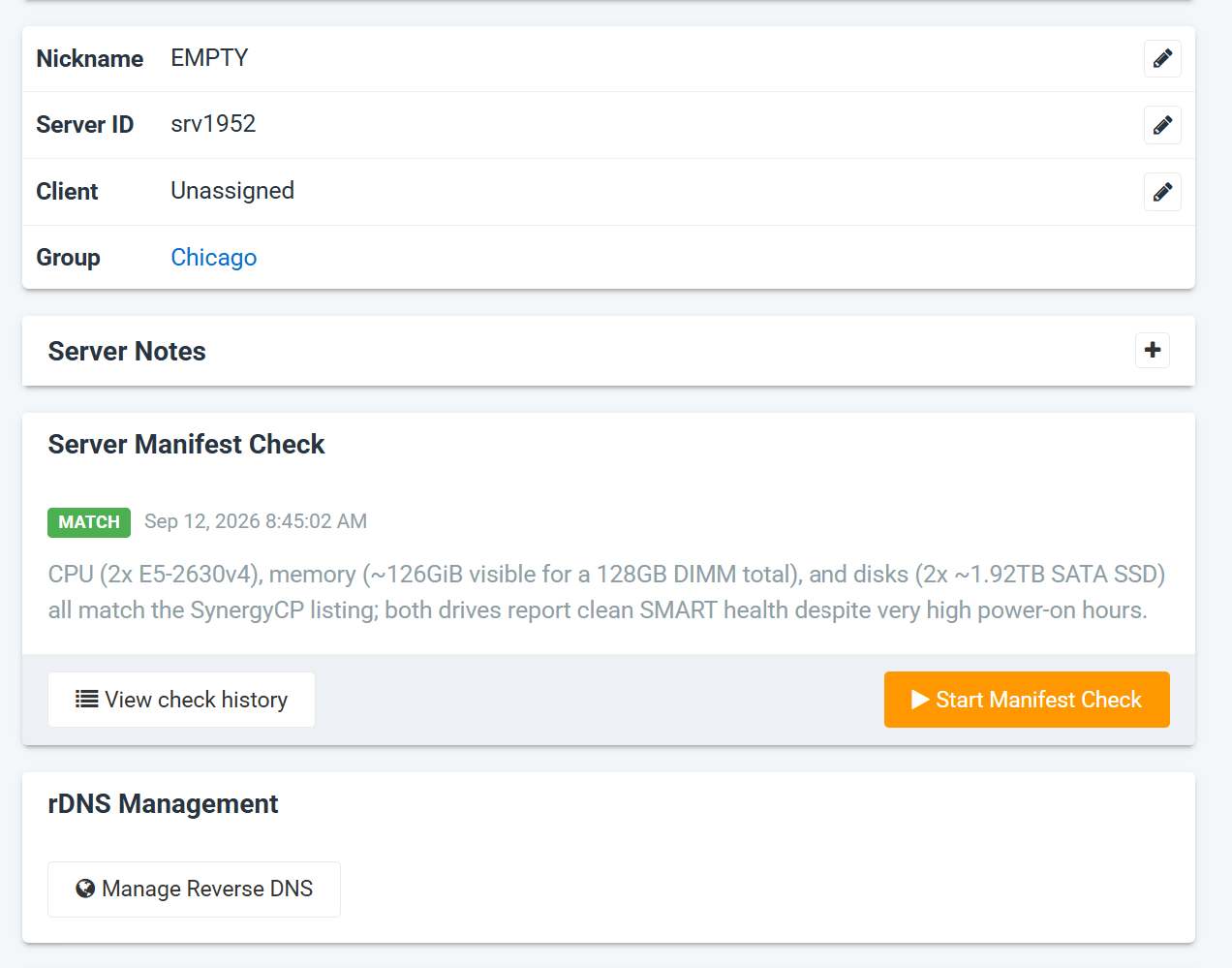
Clicking Start Manifest Check shows a confirmation, because the server is rebooted into the shell and is unavailable for a few minutes. After confirming, the check appears in the server’s Operating System Reload panel like any other install, and the server’s log records when the inventory arrives and when the verdict is stored.
A manifest check reboots the server. Run it on servers in inventory, during a maintenance window, or with the customer’s agreement. Nothing on the server’s disks is modified.
Start Manifest Check is refused while the server already has an install running. Wait for that install to finish (or cancel it) and try again.
From an OS reload#
The Server Manifest Check profile is a normal OS Reload Profile. Selecting it on the server’s reload form has the same effect as the button. This is useful when you want the check to be part of an existing workflow, for example queued from the API after a repair.
Checking every server that returns to inventory#
The most useful place to run the check is the moment a customer cancels. SynergyCP can run an OS Reload Profile automatically when a server is wiped and returned to inventory, and the Server Manifest Check profile can be that profile. Every returned server is then inventoried before it is offered for sale again, and you know whether it is ready to go back out or needs a technician to look at it first.
Go to System > Settings > Server and enter the profile’s billing ID in OS Reload on Wipe:
tools-manifest-check
From then on, each wipe reboots the server into the manifest check. A clean result stays silent and the server is ready for the next customer. A mismatch or a drive health finding posts to Slack and appears on the fleet list, and on SynergyCP 5.6.0 or newer the server is placed on Provisioning Hold automatically, so it cannot be provisioned again until a technician has looked at it and cleared the hold.
Retrying without a reboot#
The raw inventory is stored with each check. If a check ends as failed or abandoned, the history page offers Retry analysis (no reboot), which re-runs the comparison from the stored inventory. Retry is unavailable once the inventory has been pruned by the retention task (see Data retention).
Reading results#
Per-server history#
View check history on the panel, or the Manifest Check History link on the server page, lists every check for that server. Expand a row to see the full verdict.
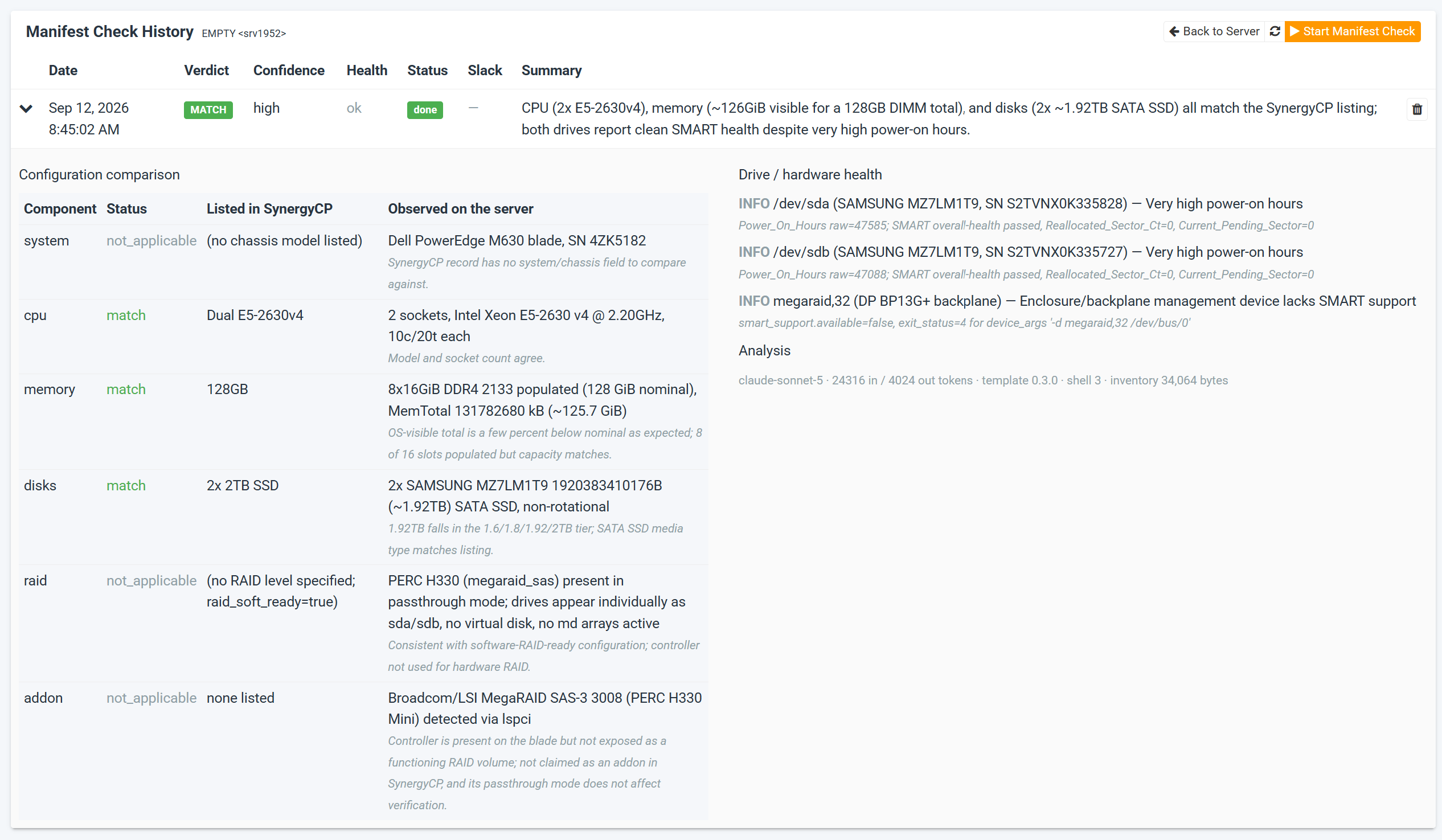
The expanded row has three parts:
- Configuration comparison: one row per component (system, CPU, memory, disks, RAID, add-on) with what SynergyCP lists, what the hardware reports, a status, and the model’s note explaining the status.
- Drive / hardware health: every finding with its severity, the device, the issue and the exact SMART attribute or log line used as evidence.
- Analysis: the model used, token counts, the PXE template and shell versions and the inventory size.
| Column | Values |
|---|---|
| Verdict | MATCH, MISMATCH or INCONCLUSIVE. The overall verdict is a mismatch if any component is mismatched, missing or unexpected. |
| Confidence | high when both the listing and the hardware were explicit, medium or low when the model had to infer a quantity or work from generic part names. Treat low-confidence mismatches as something to look at, not a certainty. |
| Health | The number of critical (red) or warning (orange) findings. Empty when there are none. Info findings are not counted. |
| Status | queued, running, done, failed or abandoned. See Check statuses. |
| Slack | A tick when a notification was posted for this check, and a pause icon when the check placed the server on Provisioning Hold. |
| Summary | The model’s one- or two-sentence summary for a technician. |
Component statuses in the comparison table:
| Status | Meaning |
|---|---|
| match | The hardware agrees with the listing. |
| mismatch | A different model, quantity, capacity tier or media type was found. |
| missing | A listed part was not found on the server. |
| unexpected | Hardware was found that is not in the listing. |
| inconclusive | The data needed to compare this component was missing or unreadable; the note says what is missing. |
| not_applicable | Nothing to compare, for example no RAID level listed, or an add-on such as bandwidth or DDoS protection that cannot be verified from hardware. Never causes a mismatch. |
Health severities:
| Severity | Examples |
|---|---|
| critical | SMART overall health FAILED, reallocated or pending or offline-uncorrectable sectors, NVMe media errors or critical warnings, a drive of size 0, a drive missing from the OS, I/O errors or link resets in the kernel log. |
| warning | NVMe wear at or above 80%, a SATA link negotiated below the drive’s capability, a degraded software RAID array, correctable memory errors, CPU sockets reporting different models. |
| info | Needs no action: high power-on hours on a drive whose SMART is otherwise clean, differing firmware between identical drives, a device without SMART support. Age alone is never raised above info. |
Fleet-wide list#
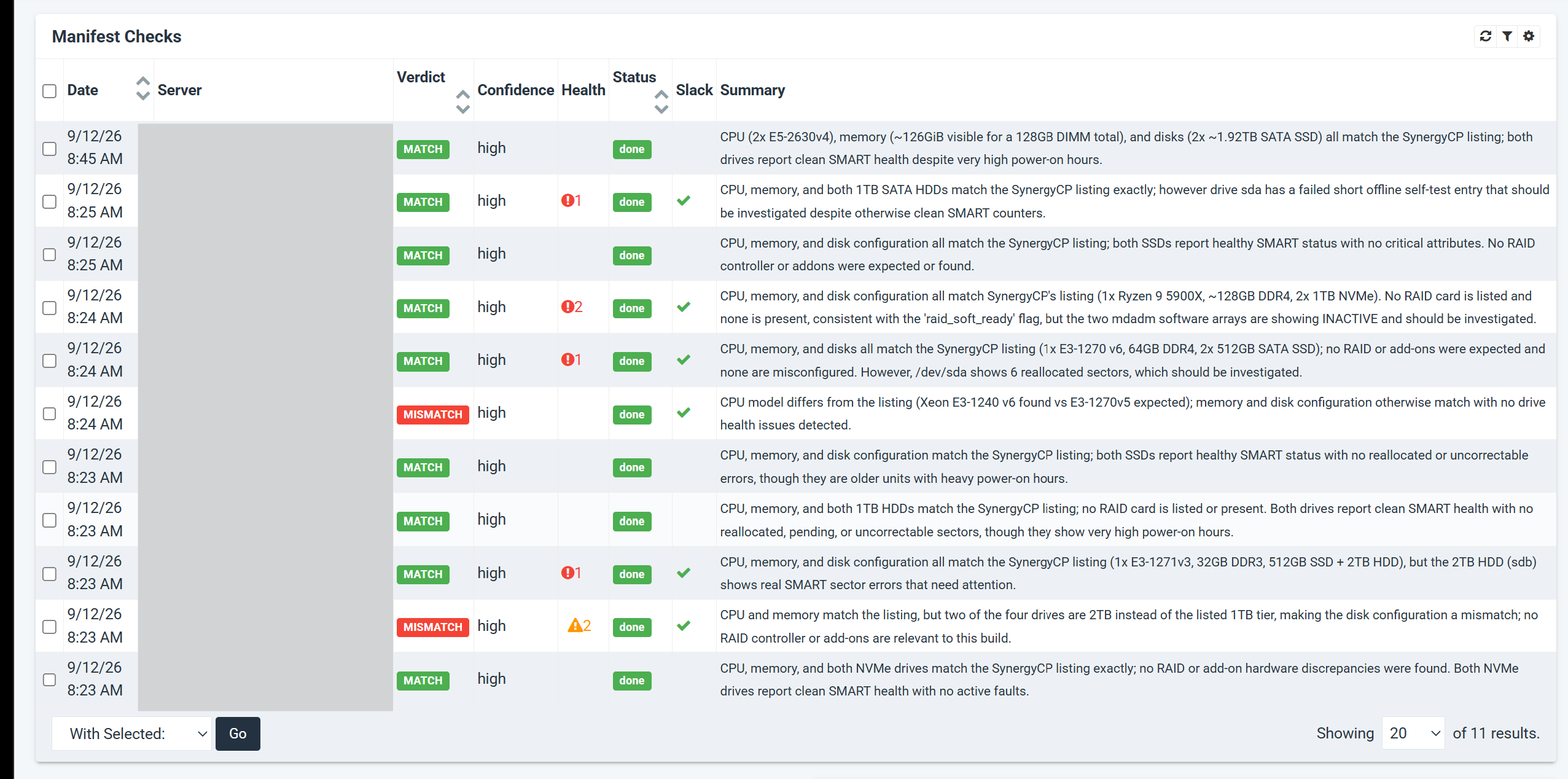
Hardware > Manifest Checks lists checks across all servers, newest first, with the same columns. Use the filter button to narrow by verdict, status or health, or search by server. Select rows and use With Selected > Delete to remove old records; each deletion is written to the server’s log.
Check statuses#
| Status | Meaning |
|---|---|
| queued | The inventory arrived and the analysis is about to start. |
| running | The model is analysing the inventory. |
| done | The verdict is stored. |
| failed | The analysis could not run, usually because model access is not configured or the server was deleted. The expanded row shows the error. Fix the cause and use Retry analysis. |
| abandoned | The analysis gave up after retries, for example the model endpoint kept returning errors. Retry is available once the endpoint is reachable again. |
A check that fails or is abandoned also writes an entry to the server’s log so it is visible without opening the history page.
How matching works#
The model is instructed to compare by meaning rather than by exact string, because part names in SynergyCP are free text typed by staff. The rules it follows:
-
CPU: model names match loosely (“E5-2670” matches “Intel(R) Xeon(R) CPU E5-2670 0 @ 2.60GHz”), but a different model number, generation or core count is a mismatch. Quantity is the socket count: “2x” against a single-socket board is a mismatch.
-
Memory: the listed capacity is compared with the DIMM total reported by the board, not the OS-visible total, which runs a few percent low. Speed and type are compared when the listing includes them. Fewer populated DIMMs than expected is a note, not a mismatch, as long as the capacity is right.
-
Disks: count, capacity class and media type are compared. Listings name a marketed tier, and SSD vendors sell the same tier at several nominal sizes, so every capacity within a tier is treated as the same class:
Tier Capacities treated as equal 128 GB 120, 128 GB 256 GB 240, 250, 256 GB 512 GB 480, 500, 512, 525 GB 1 TB 800, 960, 1000, 1024 GB 2 TB 1.6, 1.8, 1.92, 2, 2.048 TB 4 TB 3.2, 3.84, 4 TB 8 TB 6.4, 7.68, 8 TB 16 TB 12.8, 15.36, 16 TB 32 TB 30.72, 32 TB Hard disks are sold at round sizes and match only their own size. A different tier (256 GB listed, 512 GB found) is a mismatch, as is SATA SSD against NVMe or HDD. Serial numbers and vendors are ignored.
-
Hardware RAID: when a RAID controller is present, the listing is compared with the physical drives seen through SMART passthrough, not with the virtual disks, and the RAID level is inferred from the drive count and sizes.
-
RAID cards and other add-ons: a listed RAID card must correspond to a storage controller on the PCI bus, matched on family rather than exact SKU. Add-ons that cannot be verified from hardware (bandwidth, IP addresses, licenses, managed services) are marked not_applicable.
The listing is built from the server’s CPU, memory, disk and add-on parts in SynergyCP. Only part names and quantities are sent to the model; IPMI credentials, notes, billing and client data never leave SynergyCP. Clear, specific part names (“2x 1.92TB SATA SSD” rather than “SSD”) give the most reliable results.
Slack notifications#
A Slack message is posted for each check that meets one of the ticked conditions. The header names the server by hostname and server id, followed by the summary, the confidence, and what triggered the message. Only the components that are not a match and the health findings above info level are listed, with the model’s note as evidence.
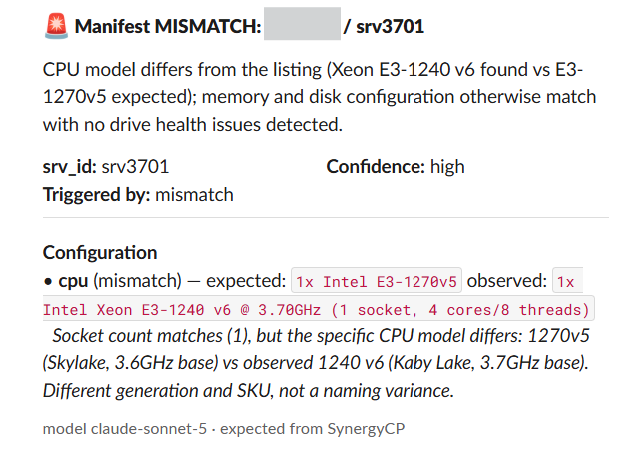
The Triggered by field distinguishes a configuration problem from a drive-health problem on a correctly built server:
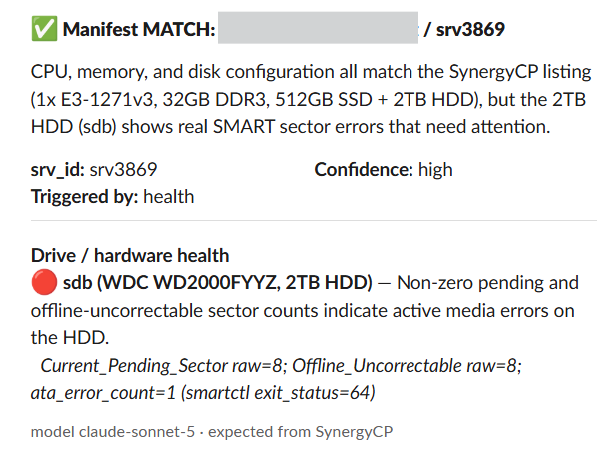
When the check has placed the server on Provisioning Hold, a line under the fields says that the server has been held from provisioning for review. If the server was already on hold before the check, the line says it stays held.
By design, a clean match with healthy drives posts nothing (unless Every check is ticked), high power-on hours alone never triggers a message, and a check whose analysis failed is logged against the server rather than posted to Slack.
Permissions#
Three permissions control access. Assign them to admin roles under System > Admins.
| Permission | Grants |
|---|---|
pkg.manifest-check.check.read |
The server panel, per-server history, the fleet list and the Hardware menu entry. |
pkg.manifest-check.check.write |
Start Manifest Check, Retry analysis and deleting records. |
pkg.manifest-check.config.write |
The Configuration page. |
The PXE shell authenticates with the install’s API key when it posts an inventory. No shared token or public endpoint is involved, and the server is identified from the key rather than from anything the shell sends.
Data retention#
Each check stores two things: the verdict (summary, component comparison, health findings, model and token counts) and the raw inventory the shell posted, which is typically 20 to 40 KB of JSON.
Verdicts are kept until you delete them. The raw inventory is removed by a nightly task from checks older than Keep raw inventories for (days) on the Configuration page (default 365, allowed range 1 to 3650). After pruning, the check is still fully readable but Retry analysis is no longer available for it.
Cost#
Each check makes one model request. Its size depends on the amount of hardware in the server, since the whole inventory is sent. With the default claude-sonnet-5 model a typical check uses around 9,000 to 25,000 input tokens and 1,500 to 4,000 output tokens, which at current Anthropic pricing is a few cents per check. Routing through Cloudflare AI Gateway gives a per-request log with the cost of each run:
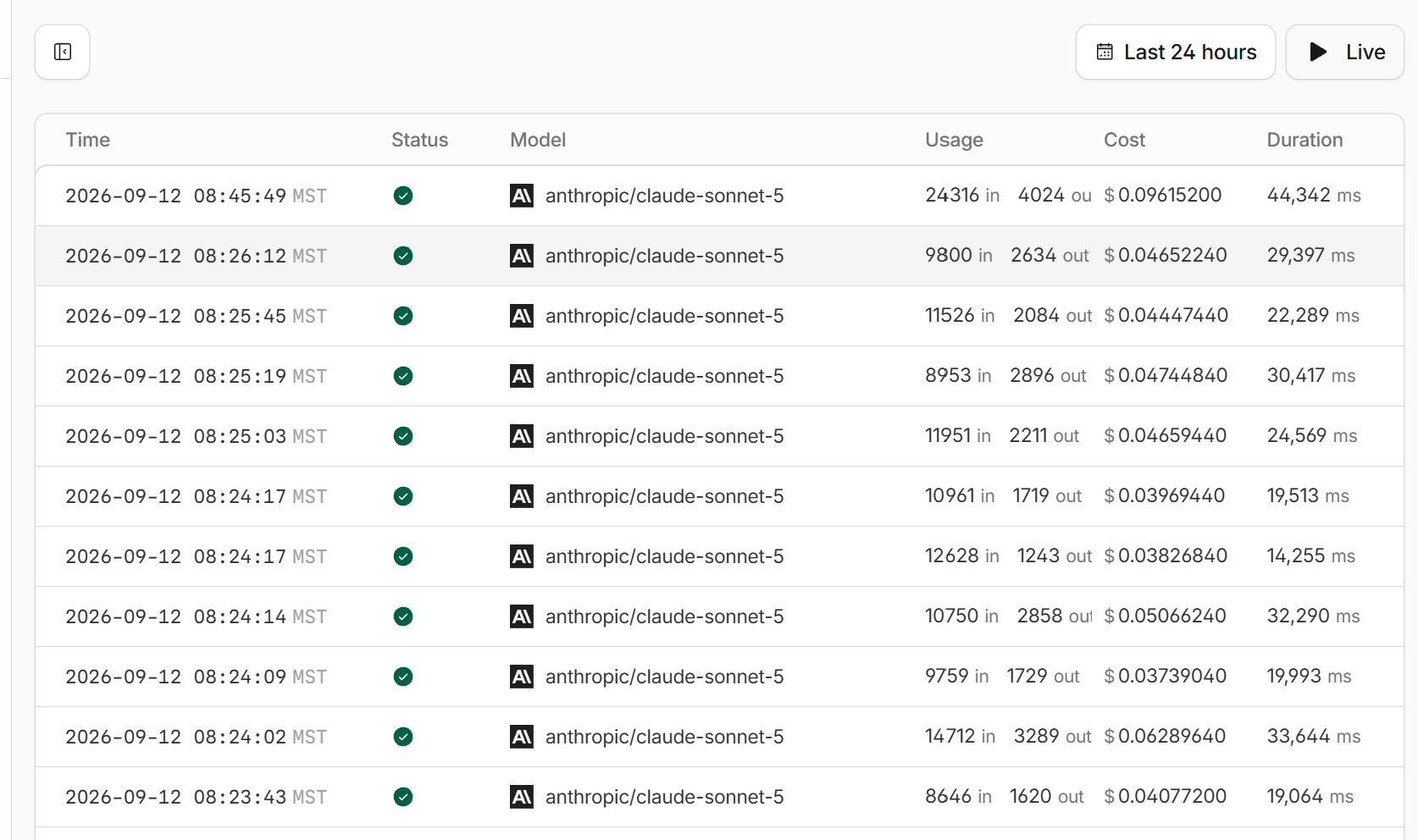
Checks only run when you start them, so the monthly cost is the number of checks you run times the per-check cost. The token counts of each run are shown under Analysis in the check’s expanded row.
Troubleshooting#
“The Server Manifest Check PXE profile is not installed”#
The Server Manifest Check profile from the OS Template Catalog is missing. See step 2 of Setup. The package looks for the profile by its catalog identity and falls back to a profile whose name starts with “Server Manifest Check”, so a renamed copy will not be found.
Start Manifest Check is refused because an install is running#
Only one install can be active per server. Wait for the running install to complete, or cancel it from the server’s Operating System Reload panel, then start the check again.
The server rebooted but no check appears#
- Check System > Settings > Server Manifest Check is enabled. When it is off, the shell’s post is rejected and the server’s KVM console shows a “feature disabled” line.
- Check the package is still installed. A missing package makes the shell report “package not installed” on the console.
- Check the server can reach the SynergyCP API from the PXE network. The shell posts to the same internal API address it uses to report install progress, so if OS reloads work, this does too.
The inventory post never blocks the install: after three attempts the shell moves on and the install finishes normally.
Check is failed#
Expand the row on the history page to read the error. Typical causes:
- No credentials configured for the selected Connect via mode. Fill them in on the Configuration page.
- Authentication error from Anthropic (
invalid x-api-key). The key is wrong, or in gateway mode with BYOK a key was entered when the gateway already stores one. Clear the optional key field in gateway mode. - Unknown model id. Set Model back to
claude-sonnet-5or another current Anthropic model.
After fixing the configuration, use Retry analysis (no reboot) on the failed check rather than rebooting the server.
Check is abandoned#
The model endpoint returned errors on the initial attempt and both retries (30 seconds and 2 minutes later). This usually means an outage or rate limiting at Anthropic or Cloudflare. Retry once the endpoint is healthy.
Nothing is posted to Slack#
- Confirm the check’s verdict or health findings meet a ticked condition under Notify Slack when. A clean match is silent unless Every check is ticked, and info-level findings such as high power-on hours never trigger a message.
- Confirm the Slack webhook URL is set and still valid. Slack returns an error for a webhook whose channel was archived or whose app was removed. The check then shows no tick in the Slack column, and the error is stored with the check (the
notify_errorfield in the API).
The server was not placed on Provisioning Hold#
- Confirm SynergyCP is 5.6.0 or newer. The Configuration page shows the running version under the Provisioning hold option when it is too old.
- Confirm Hold servers from provisioning when a check alerts is ticked on the Configuration page.
- Confirm the check met the mismatch, inconclusive or health condition. A notification posted only because Every check is ticked never holds the server.
When a check does hold a server, the server’s log has a “server put on Provisioning Hold for review” entry naming the reasons, and the history page shows a pause icon in the Slack column.
Verdict is inconclusive or confidence is low#
The model could not read one of the core components (CPU, memory, disks), or had to guess from generic part names. Expand the check: the component’s note says which data was missing. Common causes are drives behind a RAID controller the shell cannot pass SMART requests through, and listings such as “SSD” with no capacity. Make the part names in SynergyCP more specific and run the check again.
A mismatch looks wrong#
Compare the Listed in SynergyCP and Observed on the server columns in the expanded row. Most false mismatches come from the listing: an outdated part name after a hardware change, or a quantity written in a way the model read differently (“2 x 8GB” listed as memory when the server has 16 GB in one DIMM is correct capacity but reads as two modules). Correct the listing and re-run, or, if the hardware is wrong, fix the hardware and re-run to record the match.