Containerized Consoles#
Containerized Consoles were added in SynergyCP 5.3.x. Your installation must be running 5.3.x or later to use this feature. Uploading ISOs into a console over SFTP is a newer capability that requires SynergyCP 5.5 or newer, an SSH key set on the user account launching the console (admin accounts cannot upload ISOs) — see Uploading ISOs to a Console.
Containerized Consoles give your customers browser-based access to a server’s IPMI/BMC KVM console without needing the right Java version, a compatible browser, or direct network access to the BMC. When a user clicks Launch KVM, SynergyCP spins up a disposable Docker container on a dedicated Console Server. That container runs a full graphical stack (a browser and the Java Web Start runtime) that connects to the BMC’s KVM console on the user’s behalf and streams the result to their browser as an HTML5 VNC session over HTTPS.
This solves the long-standing problems with legacy IPMI KVM consoles: out-of-date Java applets, self-signed and expired BMC certificates, and BMCs that live on a private network the customer can’t reach directly.
Containerized Consoles are really only intended for very old servers whose BMCs have no HTML5 console (for example, BMCs that still rely on a Java applet). For newer servers that already have an HTML5 console, we recommend a BMC Forwarding Gateway with the server’s Launch KVM Action set to Open IPMI Login Page instead.
How It Works#
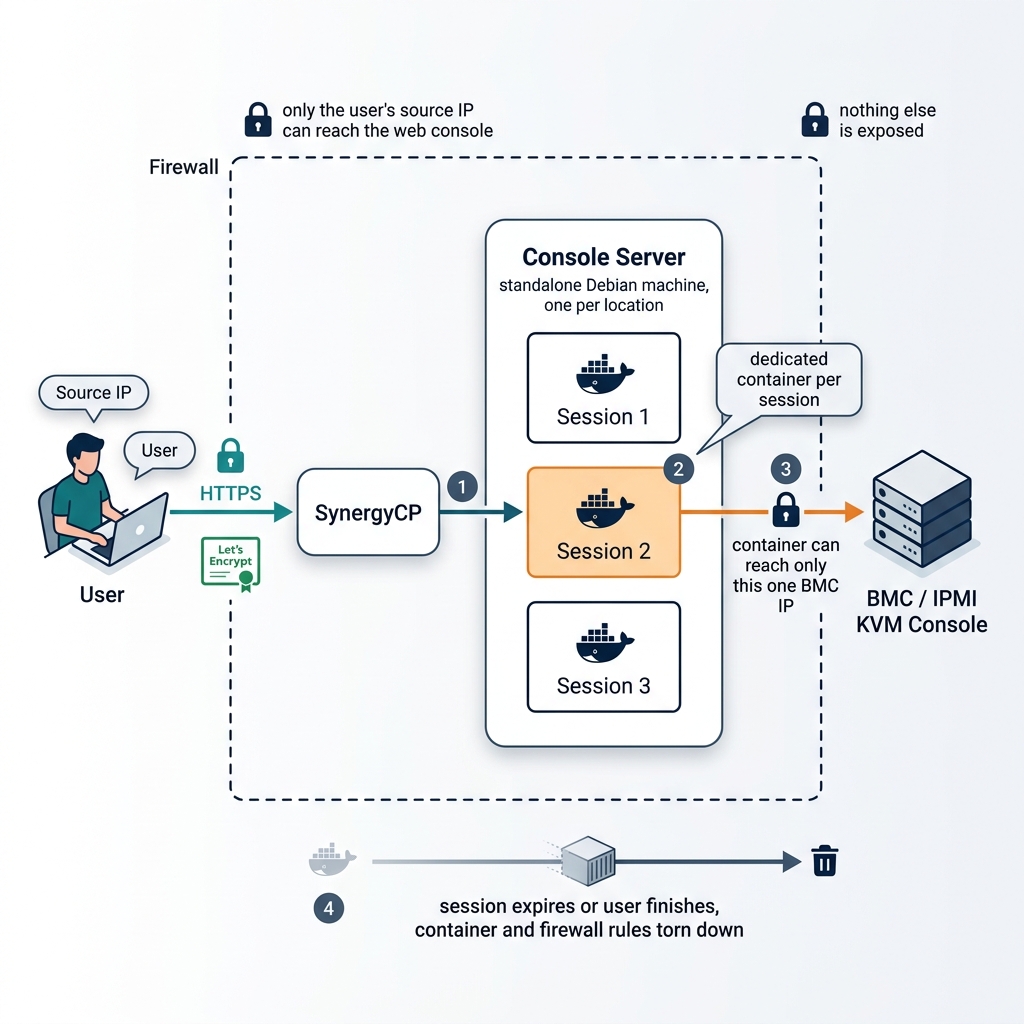
When a user launches a console for a server that is configured for Containerized Consoles:
- SynergyCP picks a healthy Console Server assigned to that server’s location (IP Group) and asks it to create a session, passing the user’s source IP and the server’s BMC IP.
- The Console Server starts a Docker container dedicated to that one session. The container opens the BMC’s KVM console internally.
- The Console Server terminates HTTPS using an automatically issued Let’s Encrypt certificate and gives the user a private URL to the session.
- Network access is locked down on both sides: only the user’s source IP can reach the web console, and the container can only reach that one BMC IP. Nothing else is exposed.
- When the user is finished — or after the session expires — the container and its firewall rules are torn down.
A Console Server is a standalone Debian machine you provision once per location. It can run many concurrent sessions, each fully isolated from the others.
Choosing a KVM access method#
SynergyCP offers more than one way to give users KVM access. You set the method per server, so you can mix and match.
- Containerized Console — SynergyCP brokers the entire KVM session inside a container and hands the user a clean HTML5 console. Best when the BMC uses an old Java applet, has an untrusted certificate, or lives on a private network. This is the method described in this section.
- Proxy Java JNLP File — SynergyCP downloads the BMC’s
.jnlplaunch file and proxies it to the user, who runs it with their own local Java. - Open IPMI Login Page — opens the BMC’s own web interface directly in the user’s browser.
Containerized Consoles and BMC Forwarding Gateways complement each other. A Forwarding Gateway puts the BMC on a private LAN and brokers raw network access to it; a Containerized Console brokers the full console experience. You can use a Console Server on its own, or alongside a gateway for BMCs that are on a private network.
In this section#
- Setting Up a Console Server — provision, install, and register a Console Server, then enable Containerized Consoles on your servers.
- Using a Containerized Console — what the experience looks like for an end user, session behavior, the permissions involved, and the console images we provide.
- Uploading ISOs to a Console — mount your own ISO in a console’s virtual media by uploading it over SFTP (requires SynergyCP 5.5+ and an SSH key on the user account; not available to admin accounts).
- Troubleshooting — resolve health, certificate, and routing problems.
- Upgrading — keep the Console Server software and console images up to date.