Uploading ISOs to a Console#
Some BMC KVM consoles let you mount an ISO image as virtual media — a virtual CD/DVD drive — so you can boot the server from your own installer or rescue image. Because a Containerized Console runs inside a disposable container with no access to your local machine, you need a way to get your ISO into the container first. Containerized Consoles do this with a per-session, upload-only SFTP endpoint: you copy your ISO in over sftp/scp, and it appears in the console’s file picker when you attach virtual media.
Uploading ISOs to a console requires SynergyCP 5.5 or newer, and a console image that supports it. On older versions the console still works for KVM access — it just has no upload endpoint. (Containerized Consoles themselves require SynergyCP 5.3.x or later; see the Containerized Consoles overview.)
ISO uploads authenticate with an SSH public key that must be set on your user account, so only user accounts can upload ISOs. Administrator accounts cannot upload ISOs into a console — SynergyCP has no SSH key management for admins, so a console launched from an admin account has no upload endpoint. To upload an ISO, launch the console from the user account that owns the server, with an SSH key set on that user.
Before you start#
You’ll need:
- SynergyCP 5.5 or newer.
- A user account with an SSH key. The upload endpoint authenticates with your SSH public key — there is no password login. The key must be set on your user account, and the console must be launched from that user so the key is installed in the container. This is a per-user setting: admin accounts have no SSH key management and therefore cannot upload ISOs. An
ed25519orecdsakey is recommended. - An SFTP/SCP client. The
sftpandscpcommands ship with macOS and Linux; on Windows use a client such as WinSCP or the OpenSSH client built into Windows 10/11.
Uploading your ISO#
-
Launch the console from your user account (see Using a Containerized Console). The console must be launched by a user that has an SSH key set, so the container brings up its upload endpoint — a console launched from an admin account has no upload endpoint.
-
Read the connection details. When the console opens, a “How to upload an ISO” window appears on the console desktop. It lists the exact values for this session:
- Host — the Console Server’s hostname.
- Port — the port to connect to for uploads.
- Username — always
console.
-
Copy the ISO in from your own machine using those values. For example, with the OpenSSH client:
sftp -P <port> console@<host>
sftp> put my-image.iso
or with
scp:scp -P <port> my-image.iso console@<host>:Uploaded ISOs land in the console’s
~/Downloadsdirectory. -
Mount the ISO from inside the console: open the BMC’s virtual-media / “mount ISO” control (the exact name depends on the BMC vendor) and browse to the Downloads folder, where your uploaded image is waiting. Then boot the server from virtual media as usual.
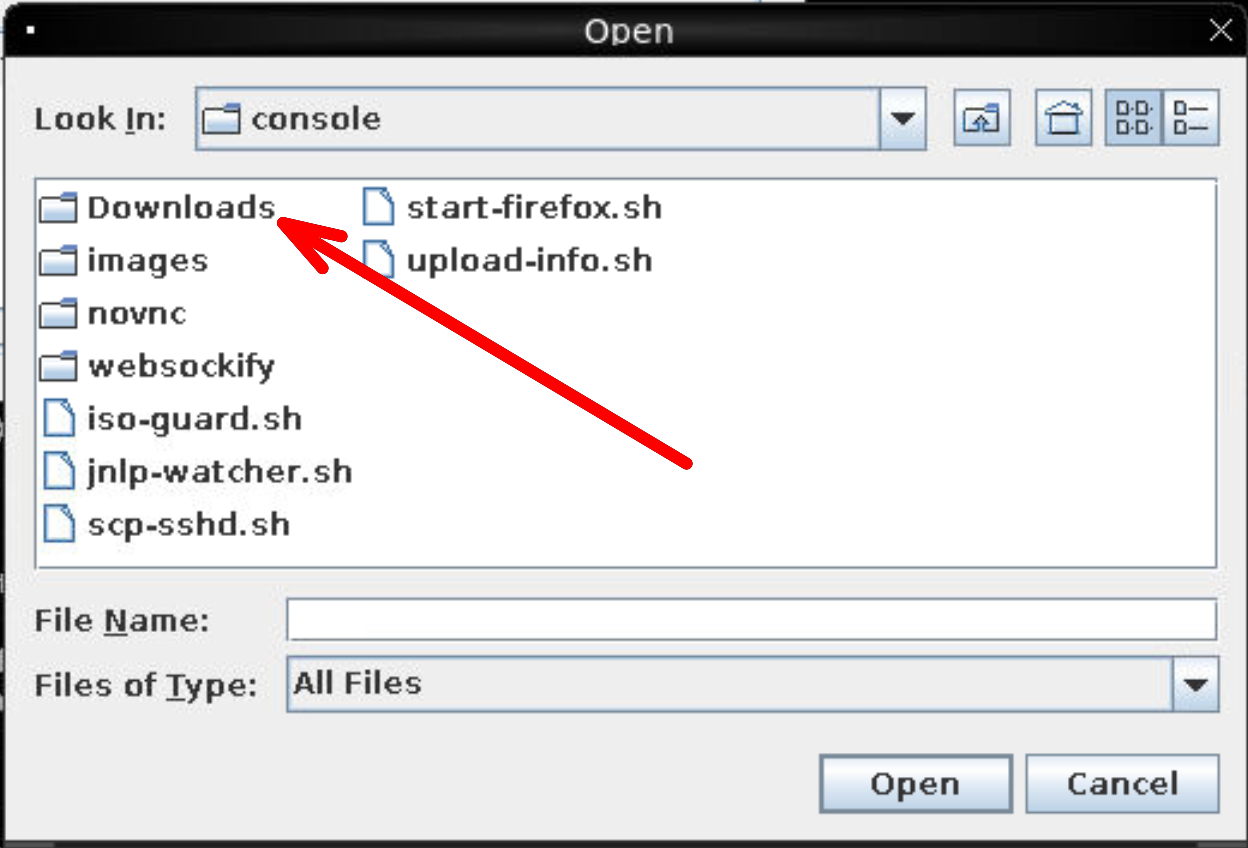
When the BMC’s file picker opens, your uploaded ISO is in the Downloads folder shown here.
If your only SSH key is an older RSA key, modern OpenSSH clients may need an extra flag because the console’s SSH stack predates RSA/SHA-2 signatures:
sftp -P <port> -o PubkeyAcceptedAlgorithms=+ssh-rsa console@<host>. Using aned25519key avoids this.
What’s allowed#
The upload endpoint is deliberately restrictive — it exists only to get ISOs onto the console, nothing more:
- ISO images only. Only files ending in
.isoare accepted, and each upload is verified to be a real ISO 9660 image. Anything else is rejected. - Uploads only — no shell. The endpoint is SFTP-only. You cannot open an interactive SSH session, run commands, or forward ports through it.
- Locked to your IP. Only the IP address the console was launched from can reach the upload port, and access is authenticated by your SSH key.
- Disposable. Uploaded ISOs live only for the life of the session. When the console session ends, the container and everything in it — including your uploaded ISOs — are destroyed.
Troubleshooting#
- No “How to upload an ISO” window appears. The console was launched by an account with no SSH key — most commonly an admin account, which has no SSH key management and so can never upload ISOs. Launch the console from the user account that owns the server, with an SSH key set on that user (and confirm you’re on SynergyCP 5.5+ with an image that supports uploads).
- “Permission denied (publickey)” when connecting. The key you’re connecting with doesn’t match the public key registered for the session. Make sure your SFTP/SCP client is offering the matching private key.
- The upload is rejected or disappears. The file must end in
.isoand be a valid ISO 9660 image; other files are removed automatically. Re-check that you’re uploading the ISO itself, not an archive or a renamed file. - The ISO isn’t in the virtual-media picker. Confirm the upload completed and that you’re browsing to
~/Downloadsin the console’s file picker.